---
updatedAt: 2026-03-19T19:36:38.000Z
agentTools:
projectIndex: https://developers.miro.com/llms.txt
---
# Create a Developer team
Before you start building apps, create a Developer team: it's your sandboxed environment to develop and test apps.
## Create a Developer team for your Miro account
> 📘 Developer teams for Enterprise plan
>
> This article describes the procedure for Miro subscriptions other than Enterprise.
>
> If your organization is on an Enterprise plan, go to the\ **Enterprise Developer teams**\
> Help Center article to learn how to set up Developer teams for an Enterprise plan.
> 🚧
>
> The Developer team isn't a production environment.
>
> Use the Developer team only as a sandboxed environment for development purposes.\
> Don't use it to carry out any other type of work or remote collaboration
To create a Developer team in Miro:
1. If you don't have a Miro account, yet, [sign up to Miro](https://miro.com/signup/).\
If you already have a Miro account, [sign in to it](https://miro.com/login/).
2. After signing in, click the link to [create a Developer team for your currently active Miro account](https://miro.com/app/dashboard/?createDevTeam=1).\
Alternatively:\
2a. Click your user account avatar.\
2b. From the drop-down menu, select **Settings**.\
2c. In the app settings view, click the **Your apps** tab.\
2d. the **Your apps** view, click **+ Create new app**.
3. In the **Create new team** modal, select the checkbox to accept Miro's terms of service, and then click **Create team**.\ 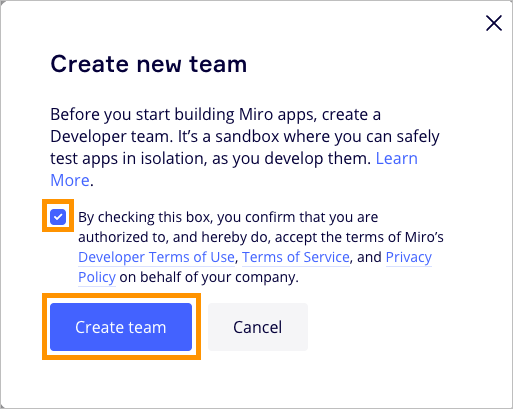
**Figure 1.** Select the checkbox to accept Miro's terms of service, and then click "Create team".
4. In the **Create new app** modal, enter a descriptive name for the app in the **App name** input field.\
The app is automatically assigned to your Developer team (Dev team).
5. To complete the process, click **Create app**.\ 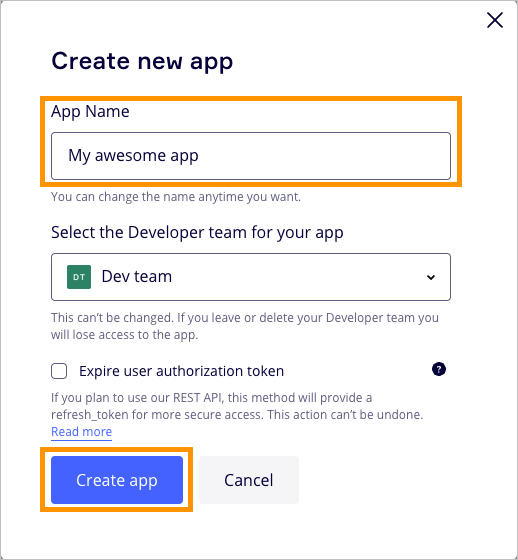
**Figure 2.** Give your app a name, and then click "Create app".
Your currently logged-in user profile is a member of the newly created Developer team.\
You can now proceed to:
* [Configure the app](https://developers.miro.com/miro-ea/docs/manually-create-an-app#step-2-configure-your-app-in-miro) you just created.
* Build a new app, using either the [Web SDK](https://github.com/miroapp/app-examples#miro-web-sdk) or the [REST API](https://github.com/miroapp/app-examples#rest-apis), or [both (full-stack)](https://github.com/miroapp/app-examples#full-stack-apps).
* [Change](https://developers.miro.com/miro-ea/docs/change-the-developer-team-name) the details of your Developer team.
* [Delete](https://developers.miro.com/miro-ea/docs/delete-the-developer-team) your Developer team.
# Sibling pages
* [Change the Developer team name](https://developers.miro.com/miro-ea/docs/change-the-developer-team-name.md)
* [Delete the Developer team](https://developers.miro.com/miro-ea/docs/delete-the-developer-team.md)
# What's next
Follow our guided onboarding to get familiar right away with the features and functionality of the Miro Developer Platform.
* [Guided onboarding](https://developers.miro.com/miro-ea/docs/guided-onboarding.md)