---
updatedAt: 2026-08-10T15:51:42.000Z
agentTools:
projectIndex: https://developers.miro.com/llms.txt
---
# Miro MCP Server Troubleshooting
Find solutions to issues and common errors with Miro's MCP Server.
### Feedback [form](https://q2oeb0jrhgi.typeform.com/to/YATmJPVx).
**MCP Inspector**: For detailed connection diagnostics, use [MCP Inspector](https://modelcontextprotocol.io/docs/tools/inspector).
# 🔐 Re-authenticate or switch teams in Microsoft 365 Copilot
Sign out of Miro inside Microsoft 365 Copilot and sign back in to switch the team the Miro agent works with.
### Why you might need this
Miro MCP keeps a 1:1 connection, so you're authenticated into one team at a time. To point the Miro agent at a board in a different team, sign out and sign back in while selecting that team. See [Authentication & Team Access](#-authentication--team-access) for the full rule.
1. Open the Miro agent in Microsoft 365 Copilot.
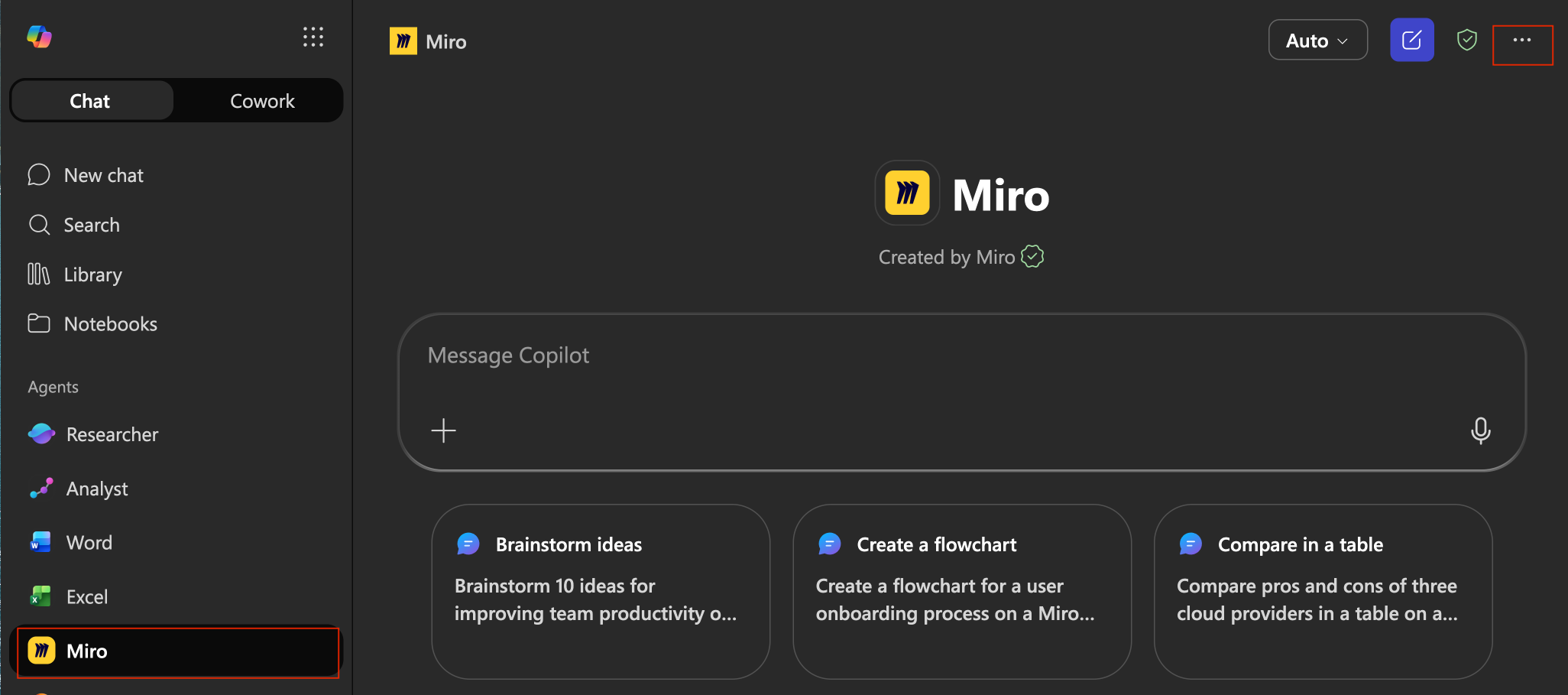
*Select Miro under Agents in the sidebar.*
2. Open the more options menu (`...`) at the top right, then select **Settings**.
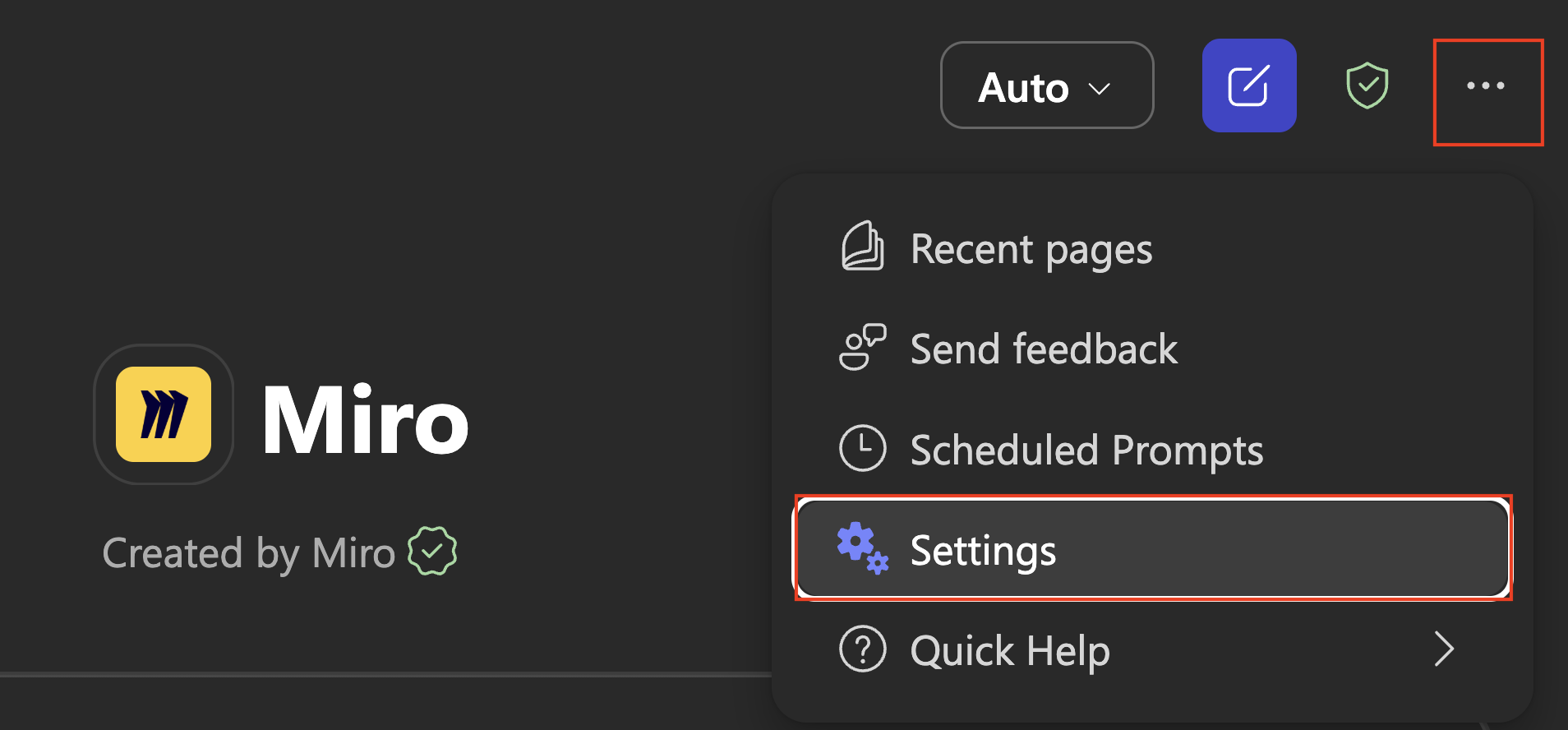
*Open the more options menu, then select Settings.*
3. In **Chat settings**, select **Agents**, then select **Miro**.
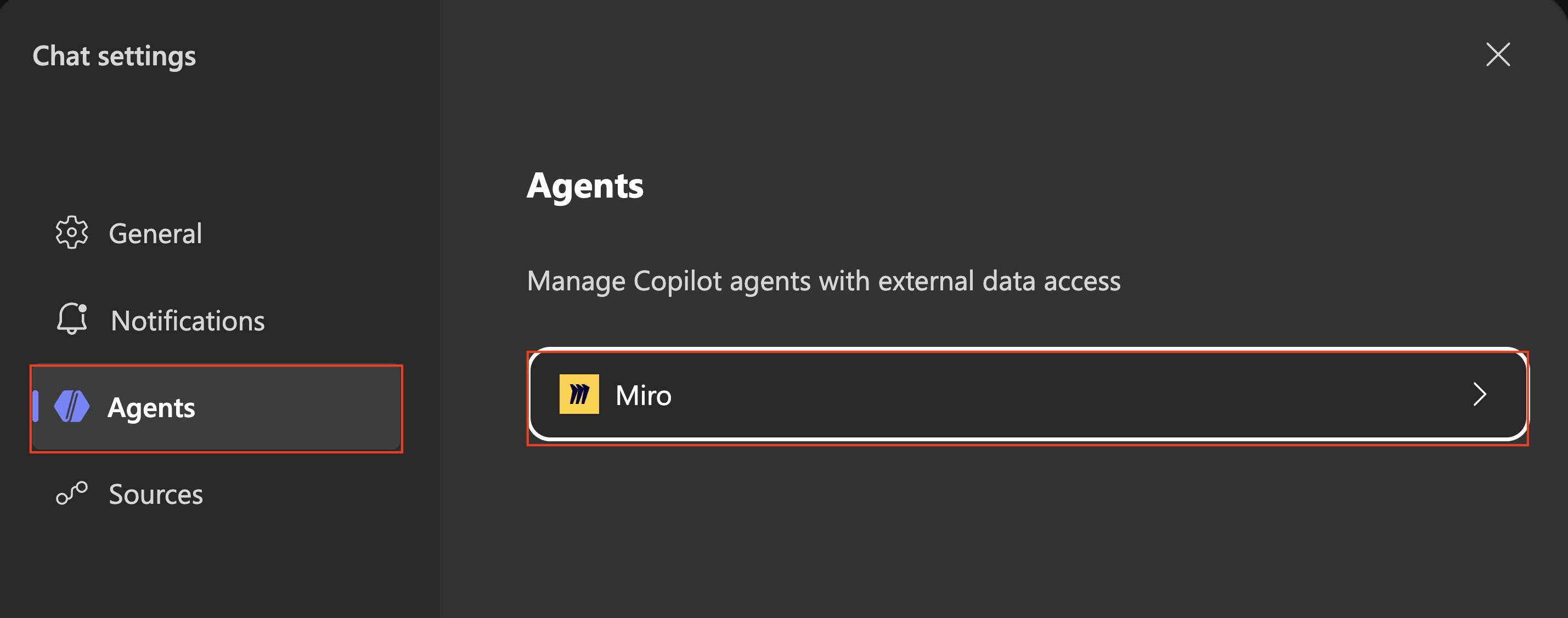
*Open Agents, then select Miro.*
4. Find **Miro** under the agent's tool permissions, then select **Sign out**.
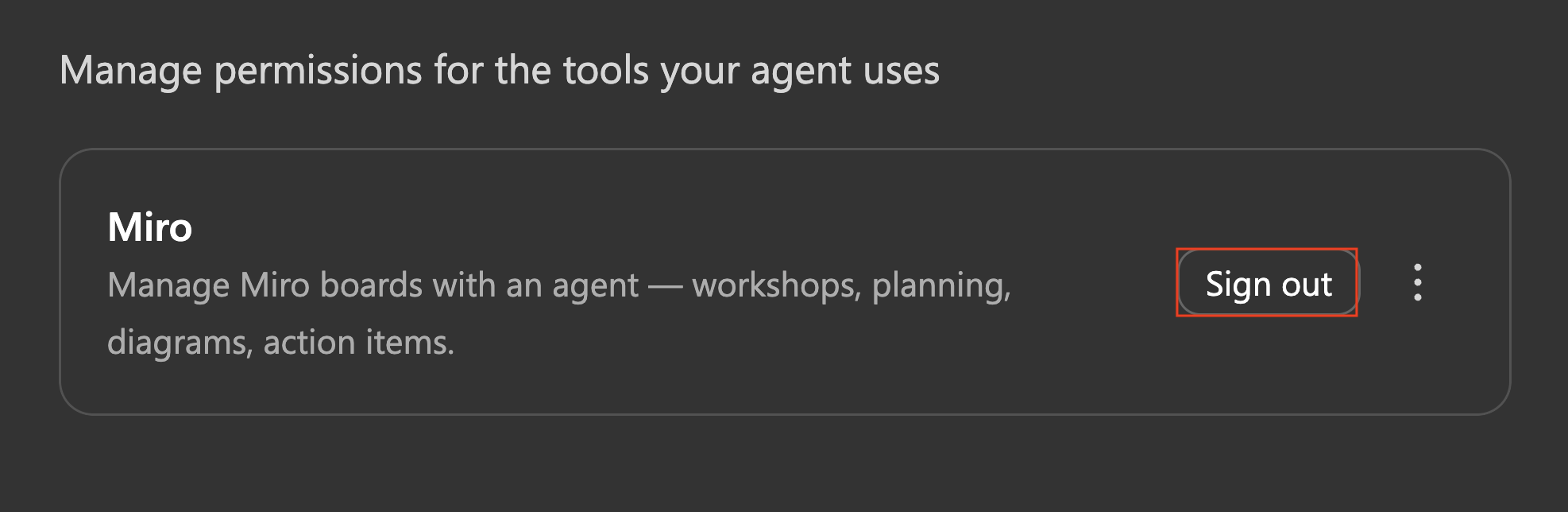
*Select Sign out to end the current Miro connection.*
5. Send your prompt again. Copilot asks you to sign back in. Select **Sign in to Miro**.
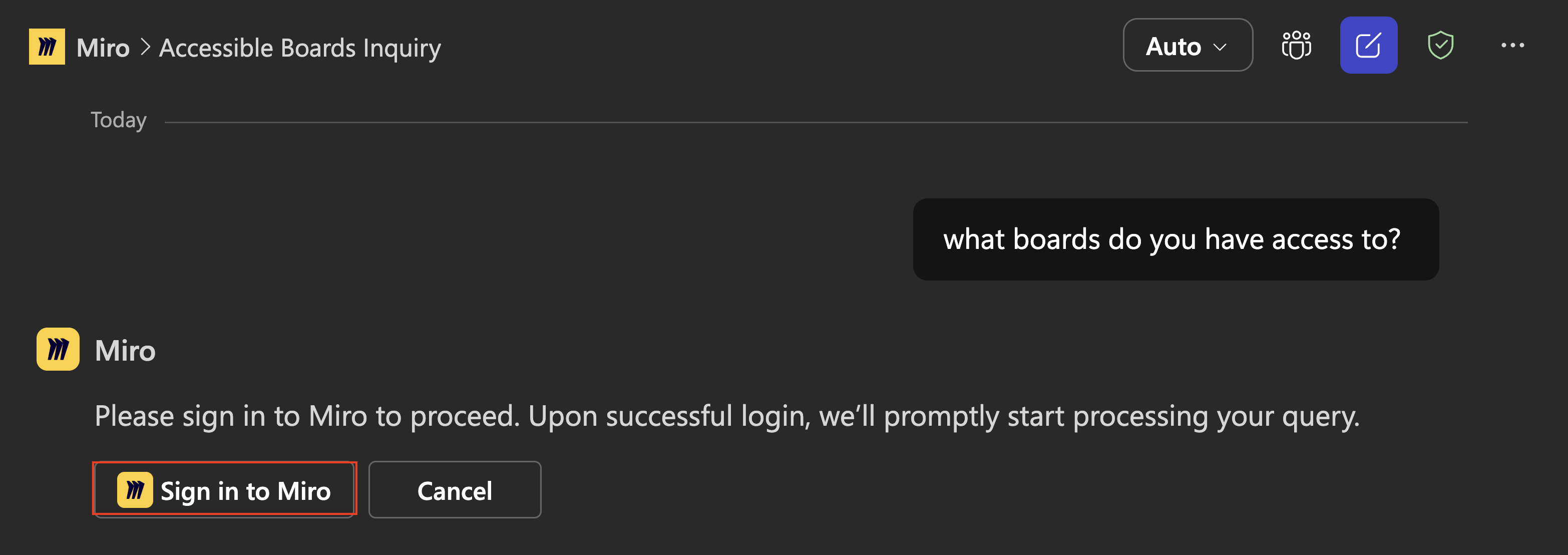
*Send a prompt, then select Sign in to Miro.*
6. Complete the OAuth flow and choose the team that holds the board you want to work with.
That's it. The Miro agent is now connected to the team you selected, and your next prompt runs against its boards.
# Invalid Response Error
### If you see this error during the auth process, please clear your Miro browser cookies.
# 🔑 Authentication & Team Access
The most common issues with the Miro MCP server relate to how users are authenticated across multiple teams.
## Why am I seeing a "Different Team" authorization error?
If you receive the following error message:
> "This board belongs to a different team than your current authorization. To access this board, please re-authorize while viewing it."
### **The "Last One Wins" Rule:** This 1:1 rule applies across all MCP Clients. If you authenticate into a new team or even a different MCP Client, the previous connection is immediately dropped.
* **The Cause:** Miro MCP maintains a **1:1 connection**. Each individual user can only be "connected" or "authed" into **one team at a time**. This is true even if you auth with multiple MCP Clients. For example, **if you auth into 3 clients, only the latest client connection will work**!
* **The Behavior:** Once a user re-authenticates into **another** team, the connection from the previous team is lost. If the AI tries to access a board from a team that is no longer authenticated, it will trigger this error.
* **The Fix:** Simply re-authenticate while viewing a board in the desired team to reset the connection to that specific environment.
# 🔄 Duplicate MCP Servers
Why am I seeing duplicate Miro tools or repeated auth prompts?
There are multiple ways to install the Miro MCP Server, and each creates an **independent connection** with its own OAuth session. If more than one is active in the same client, you'll see duplicate tools and authentication confusion.
### Installation methods
| Method | Who it's for | Scope |
| --------------------------------------------------------------------------- | ------------------------------------------------------------------------- | ---------------------------------- |
| **Plugin / extension** (from [miro-ai](https://github.com/miroapp/miro-ai)) | Everyone using Claude Code, Cursor, Gemini CLI, or Kiro | User (follows you across projects) |
| **Manual JSON config** (`"url": "https://mcp.miro.com/"`) | Clients without a Miro plugin (VSCode + Copilot, Windsurf, Lovable, etc.) | User or project |
### **The rule: use only one method per client.** If your client has a Miro plugin or extension, use that — and do not also add manual MCP config. They both connect to the same server but maintain separate auth sessions.
### How to fix duplicates
1. **Check your MCP server list** in your client's settings. If you see more than one Miro entry, you have duplicates.
2. **If you have a plugin installed** — remove the manual config entry. The plugin already manages the MCP connection for you.
3. **Restart your client** and re-authenticate once.
# How to Solve "Board Access denied" error in VSCode
1. Go to bottom left corner, click on profile icon -> MCP (mcp.miro.com) -> Sign out (As shown below).
2. Follow the steps to re-add the Miro MCP Server to VSCode. Easiest way is by clicking install from the [GitHub MCP Registry.](https://github.com/mcp/miroapp/mcp-server)
3. Re-run your prompt and you should see that the error is gone.
# 💻 Client Not Registered Error
If you see a **"Client Not Registered"** error with VSCode (or other MCP Clients) during auth, specifically this error:
## How to Solve Client Not Registered Error Request
You will need to **re-request a new Client ID** from the MCP Server.
### VSCode Client Not Registered Solution
For **VSCode**, you can run the following command
1. Go to command pallet by going to Code -> View -> Command Pallete (as shown below)
2. Use the following command: `Authentication: Remove Dynamic Authentication Providers`
3. That's it! Re-auth, and the issue should be fixed.
### Cursor Client Not Registered Solution
For **Cursor**, you can run the following commands
1. Go to command pallet by going to Cursor -> View -> Command Pallete (as shown below)
2. Use the following command: `Cursor: Clear all MCP Tokens`
2. Re auth into Cursor by going into MCP Settings -> Connect.
3. You should see the Miro App Request from Cursor and click on Allow Access.
4. You will now go through the OAuth flow to [select a team ](https://developers.miro.com/docs/connecting-to-miro-mcp#installing-miro-mcp-team-selection)to install the MCP Server on within your Miro Organization.
5. That's it! You should see the tools are available in the Cursor MCP Settings.
## 🏢 Enterprise & Admin Setup
### Is MCP available across all teams in an Enterprise account?
**No.** MCP must be enabled on a **team-by-team basis**.
* **Admin Action:** Enterprise admins can turn the feature on/off at the Org-level, but they must explicitly **select the teams** where it should be active. If you're on an Enterprise account, ensure your admin has turned it on - see guide [here](https://help.miro.com/hc/en-us/articles/31625761037202-Miro-MCP-Server-admin-guide).
* **User Access:** If you cannot find the MCP in your sidebar, please contact your Admin to ensure your specific team has been enabled in the settings.
***
## ⚡ Quick Troubleshooting Guide
| Issue | Resolution |
| :-------------------- | :--------------------------------------------------------------------------------------------------------------------------------- |
| **"Board not found"** | Ensure the board belongs to the team you are currently authenticated into. |
| **Connection Lost** | This usually happens when you auth into a second team. You must re-auth to switch back. |
| **Permissions Error** | Verify that the user who performed the OAuth flow has at least **View** access to the board. |
| **Duplicate tools** | You have multiple Miro MCP servers active (e.g., plugin + manual config). Keep only one — see Duplicate MCP Servers section above. |
***
### **Pro Tip: Team Switching**
For more details on the installation and team selection flow, visit the [MCP Documentation on Team Selection](https://developers.miro.com/docs/connecting-to-miro-mcp#installing-miro-mcp-team-selection).
# Sibling pages
* [Miro's MCP Server](https://developers.miro.com/miro-ea/docs/miro-mcp.md)
* [Getting started with Miro's MCP Server](https://developers.miro.com/miro-ea/docs/connecting-to-miro-mcp.md)
* [MCP use cases and example prompts](https://developers.miro.com/miro-ea/docs/mcp-use-cases-and-example-prompts.md)
* [Miro MCP Server Tools](https://developers.miro.com/miro-ea/docs/miro-mcp-tools.md)
* [Connecting Miro's MCP Server to MCP Clients](https://developers.miro.com/miro-ea/docs/connecting-miro-mcp-to-ai-coding-tools.md)
* [MCP Tutorials](https://developers.miro.com/miro-ea/docs/mcp-tutorials.md)
* [Miro MCP Server — Frequently Asked Questions](https://developers.miro.com/miro-ea/docs/miro-mcp-server-frequently-asked-questions.md)
* [MCP Usage and Daily Limits](https://developers.miro.com/miro-ea/docs/mcp-usage-and-daily-limits.md)
* [MCP Server vs REST API](https://developers.miro.com/miro-ea/docs/mcp-server-vs-rest-api.md)
* [OIDC support for Miro MCP](https://developers.miro.com/miro-ea/docs/oidc-support-for-miro-mcp.md)
* [Miro Mcp Getting Started Skill](https://developers.miro.com/miro-ea/docs/miro-mcp-get-started.md)
# What's next
* [Explore MCP Capabilities](https://developers.miro.com/docs/mcp-intro)
* [Join the Miro Developer Discord](discord.gg/bh64hJVmS5)
* [Ask Questions on Miro's Developer Community Forum](https://community.miro.com/developer-platform-and-apis-57)